



How to Manually Integrate Google reCAPTCHA in OutSystems? In modern web applications, protecting forms and login flows from bots is essential. While OutSystems provides Forge components like reCAPTCHA integrations, they don’t always cover advanced scenarios—such as dynamically loaded login modals or custom authentication flows.
In this guide, you’ll learn how to manually integrate Google reCAPTCHA v3 into OutSystems using pure JavaScript + Client/Server Actions, with a production-ready approach.
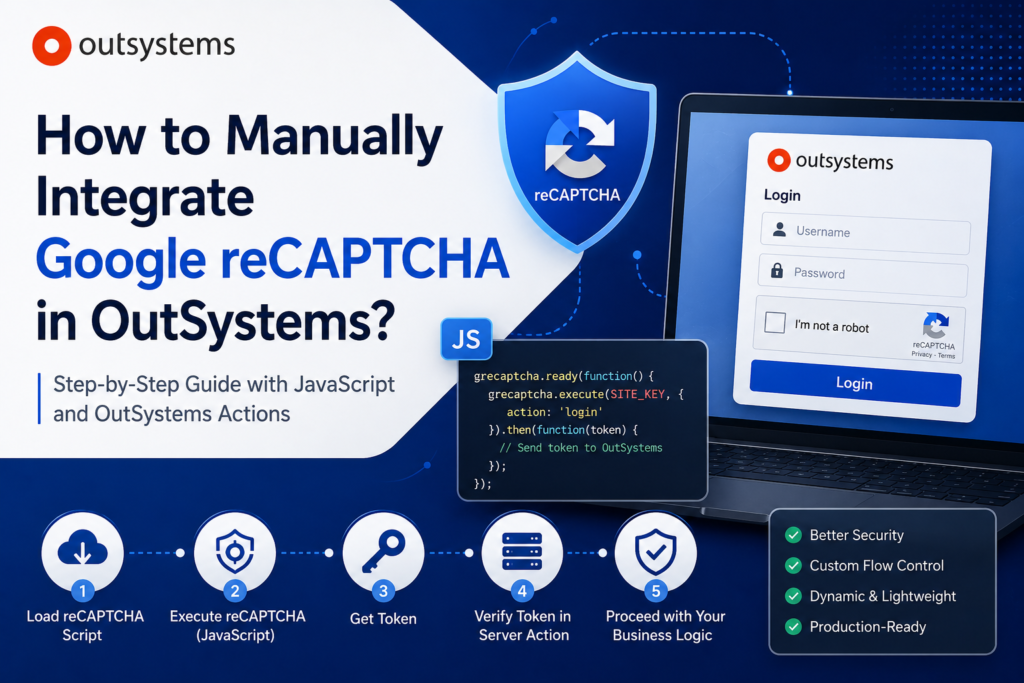
🚀 Why Manual Integration?
Manual integration gives you:
- Full control over when and how reCAPTCHA is executed
- Dynamic loading (perfect for modals, popups, lazy screens)
- Better performance (load only when needed)
- Cleaner architecture for complex flows
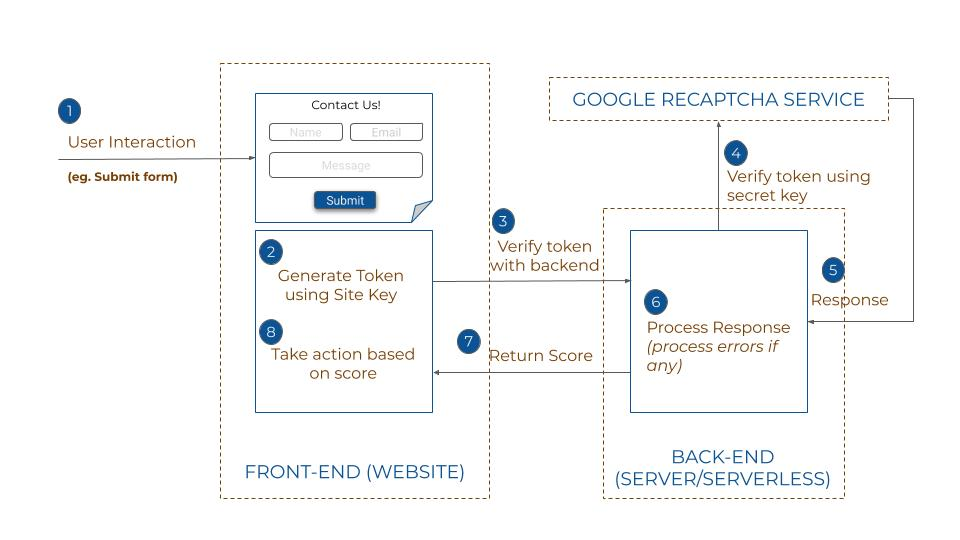
🧩 How to Manually Integrate Google reCAPTCHA in OutSystems
The integration flow looks like this:
- Dynamically load reCAPTCHA script (with SiteKey)
- Execute reCAPTCHA when user clicks a button
- Get token from Google
- Send token to Server Action for verification
- Continue business logic (login, submit, etc.)
🔧 Step 1: Dynamic Script Loader (Production-Ready)
Since your SiteKey comes from a Server Action (AfterFetch), you should load the script dynamically and only once.
window.RecaptchaManager = (function () {
    let isLoaded = false;
    let isLoading = false;
    let loadPromise = null;
    let siteKeyCache = null;

    function load(siteKey) {
        if (isLoaded) return Promise.resolve();

        if (isLoading) return loadPromise;

        isLoading = true;
        siteKeyCache = siteKey;

        loadPromise = new Promise(function (resolve, reject) {
            if (document.querySelector('script[src*="recaptcha/api.js"]')) {
                isLoaded = true;
                resolve();
                return;
            }

            let script = document.createElement("script");
            script.src = "https://www.google.com/recaptcha/api.js?render=" + siteKey;
            script.async = true;
            script.defer = true;

            script.onload = function () {
                isLoaded = true;
                resolve();
            };

            script.onerror = function () {
                reject("Failed to load reCAPTCHA script");
            };

            document.head.appendChild(script);
        });

        return loadPromise;
    }

    function execute(action) {
        return loadPromise.then(function () {
            return new Promise(function (resolve, reject) {
                if (!window.grecaptcha) {
                    reject("grecaptcha not available");
                    return;
                }

                grecaptcha.ready(function () {
                    grecaptcha.execute(siteKeyCache, { action: action })
                        .then(resolve)
                        .catch(reject);
                });
            });
        });
    }

    return {
        load: load,
        execute: execute
    };
})();
📌 Call this inside your Server Action → AfterFetch JS block:
window.RecaptchaManager.load($parameters.SiteKey);
🖱️ Step 2: Button Click (Client Action + JS)
This is triggered when the user clicks Login / Submit.
⚠️ Important:
Even though you want a “synchronous feel”, reCAPTCHA must remain async internally.
Recommended Stable Pattern:
if (window.isSubmitting) return;

window.isSubmitting = true;

RecaptchaManager.execute($parameters.Action)
    .then(function (token) {

        if (!token) {
            $parameters.ErrorMessage = "Empty token";
            $parameters.Success = false;
            return;
        }

        $parameters.Token = token;
        $parameters.Success = true;

        // 👉 Trigger OutSystems Client Action callback
        if (window.onRecaptchaSuccess) {
            window.onRecaptchaSuccess(token);
        }
    })
    .catch(function (err) {
        $parameters.ErrorMessage = err;
        $parameters.Success = false;

        if (window.onRecaptchaError) {
            window.onRecaptchaError(err);
        }
    })
    .finally(function () {
        window.isSubmitting = false;
    });
🔁 Step 3: Callback Bridge (Key for OutSystems)
Since OutSystems cannot pass function delegates, use global callbacks:
window.onRecaptchaSuccess = function (token) {
    $actions.YourNextClientAction(token);
};

window.onRecaptchaError = function (err) {
    console.error("Recaptcha failed:", err);
};
This acts as a bridge between:
👉 JavaScript Promise
👉 OutSystems Client Action
🔐 Step 4: Server-Side Verification
Create a Server Action:
- Input:
Token - Call Google API:
https://www.google.com/recaptcha/api/siteverify
With:
secretresponse(token)
Then validate:
success == truescore >= 0.5(for v3)action == expected
👁️ Step 5: Hide reCAPTCHA Badge (Optional)
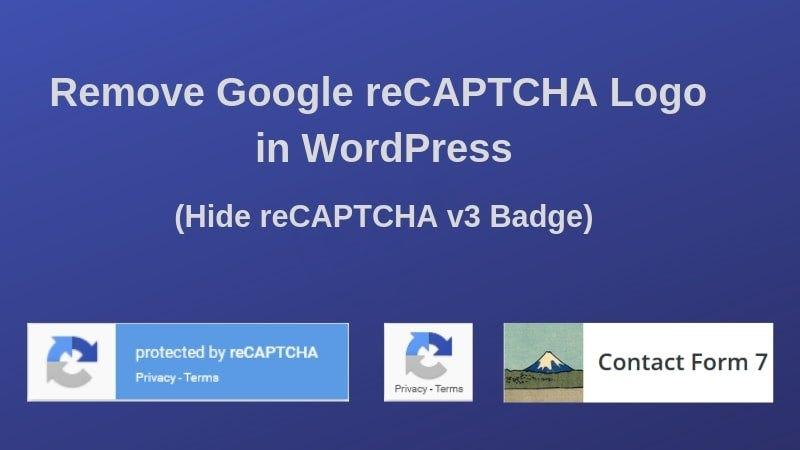
reCAPTCHA v3 shows a badge in the bottom-right corner.
To hide it dynamically:
let style = document.createElement("style");
style.innerHTML = `.grecaptcha-badge { visibility: hidden !important; }`;
document.head.appendChild(style);
⚠️ Note: Google requires you to show reCAPTCHA terms somewhere in your UI.
🧠 Common Pitfalls
❌ Promise stays pending
This means:
- Script not loaded yet
grecaptcha.ready()not triggered
❌ Duplicate script loading
Handled via:
document.querySelector('script[src*="recaptcha/api.js"]')
❌ Trying to force synchronous execution
Not possible. Use:
- callback bridge
- or reactive flow in OutSystems
✅ Production Best Practices
- Use singleton manager (
RecaptchaManager) - Prevent double submit (
isSubmitting) - Always handle
.catch - Cache
siteKey - Validate on server-side only
- Use action names (e.g.
"login","submit") for scoring
🎯 Final Thoughts
Manual reCAPTCHA integration in OutSystems may seem complex at first, but it unlocks powerful capabilities:
- Dynamic UI integration (modals, popups)
- Clean async handling
- Full control over execution timing
If you’re building enterprise-grade apps, this approach is far more flexible than relying solely on Forge components.